Live Discovery
Introduction
In this section, we will be explore the usage of Live Discovery, when there are transactions that are more called internally using Plain Old Java Object (POJO).
Precaution
When using Live Discovery, please make sure you do this on a Sandbox environment. This is because using Live Discovery will require more overhead and we don’t want to keep using it to the point of the JVM crashing. In the case of a sandbox environment not being available, please use at your own risk. If the customer have 2+ nodes, then at least they have some fallback options. Just keep that in mind.
Using Live Discovery
Using Live Discovery will allow you to identify any Uninstrumented Code and the ability to see Classes and Methods you can try to setup Business Transactions. The instructions below will explain how to accomplish this:
In the Instrumented Application, navigate to Configuration > Instrumentation > Transaction Detection
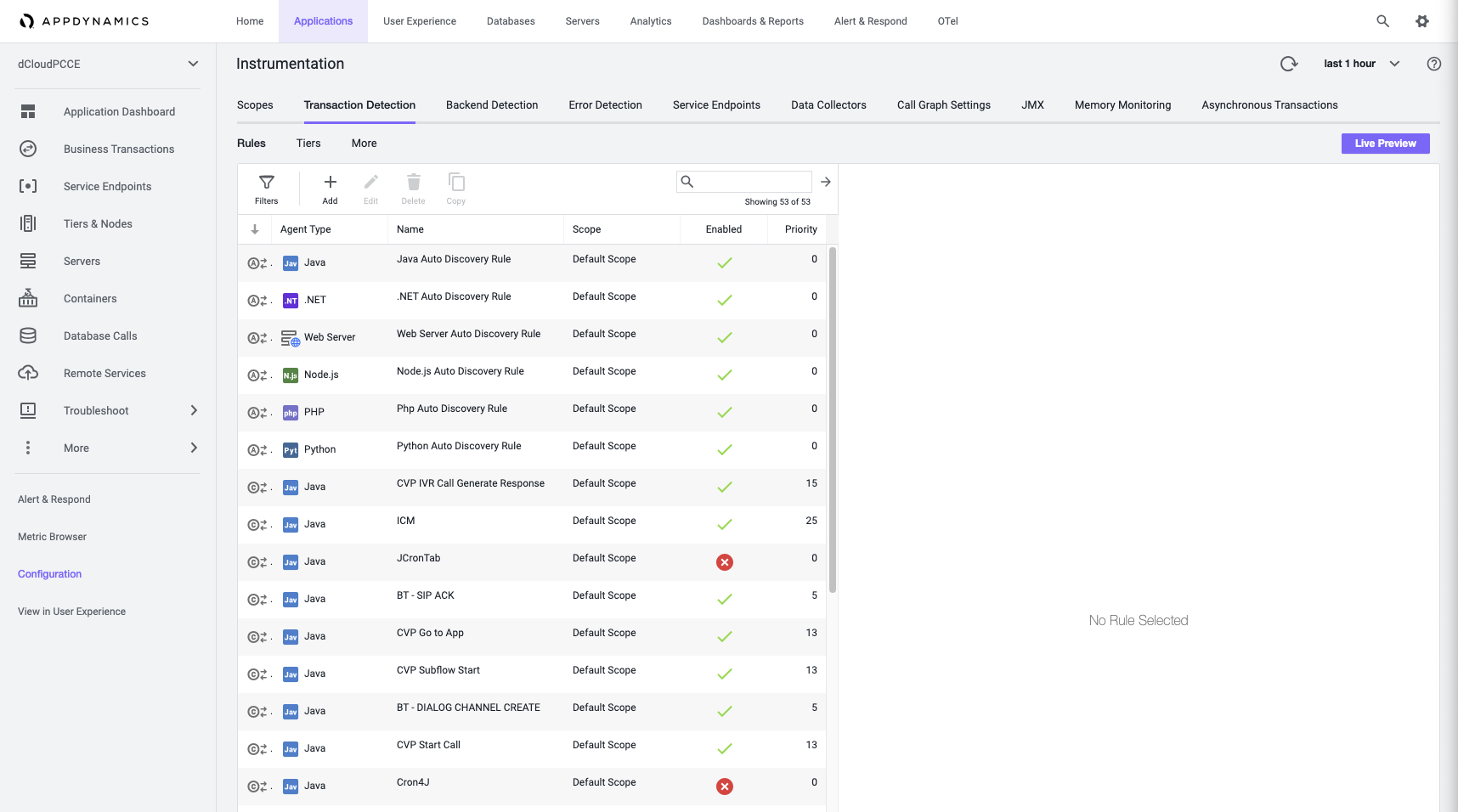
On the top right corner, hit “Live Preview” to start using Live Discovery
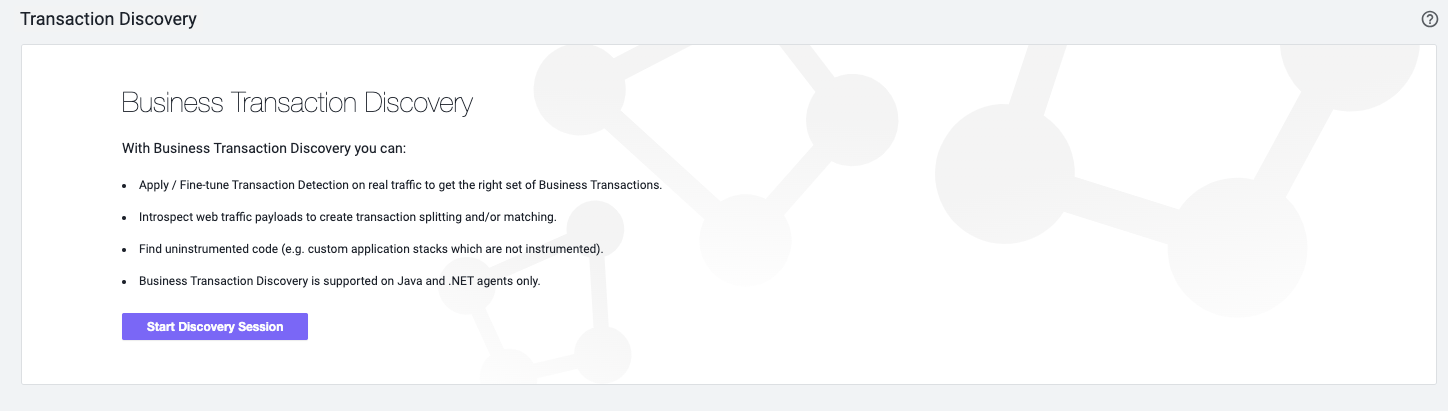
Hit on “Start Discovery Session” to continue
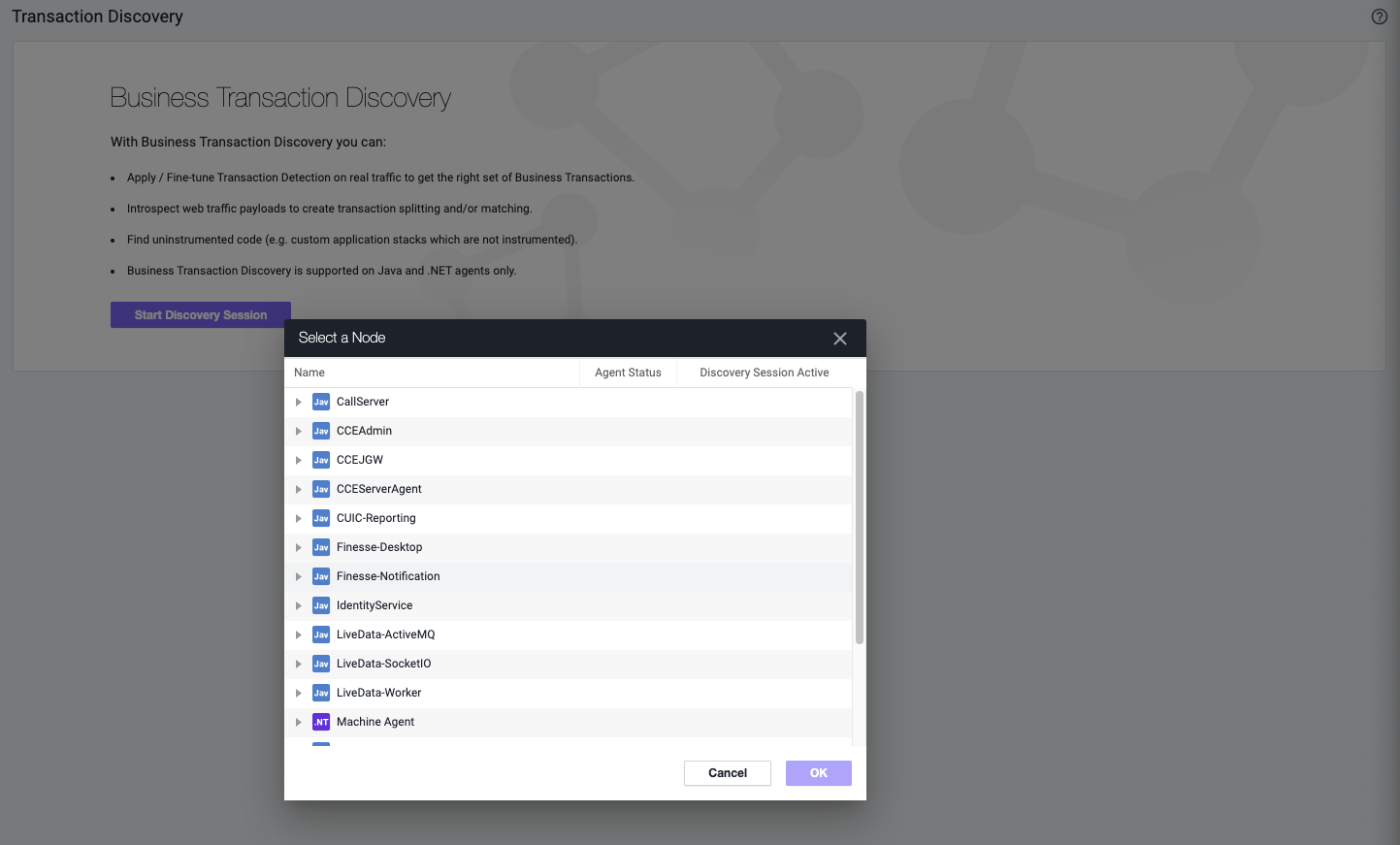
It will prompt you a the list of Tiers and Nodes for you to select, to start the Live Discovery on that particular Node. For this example, we’ll use “CUIC-Reporting”.
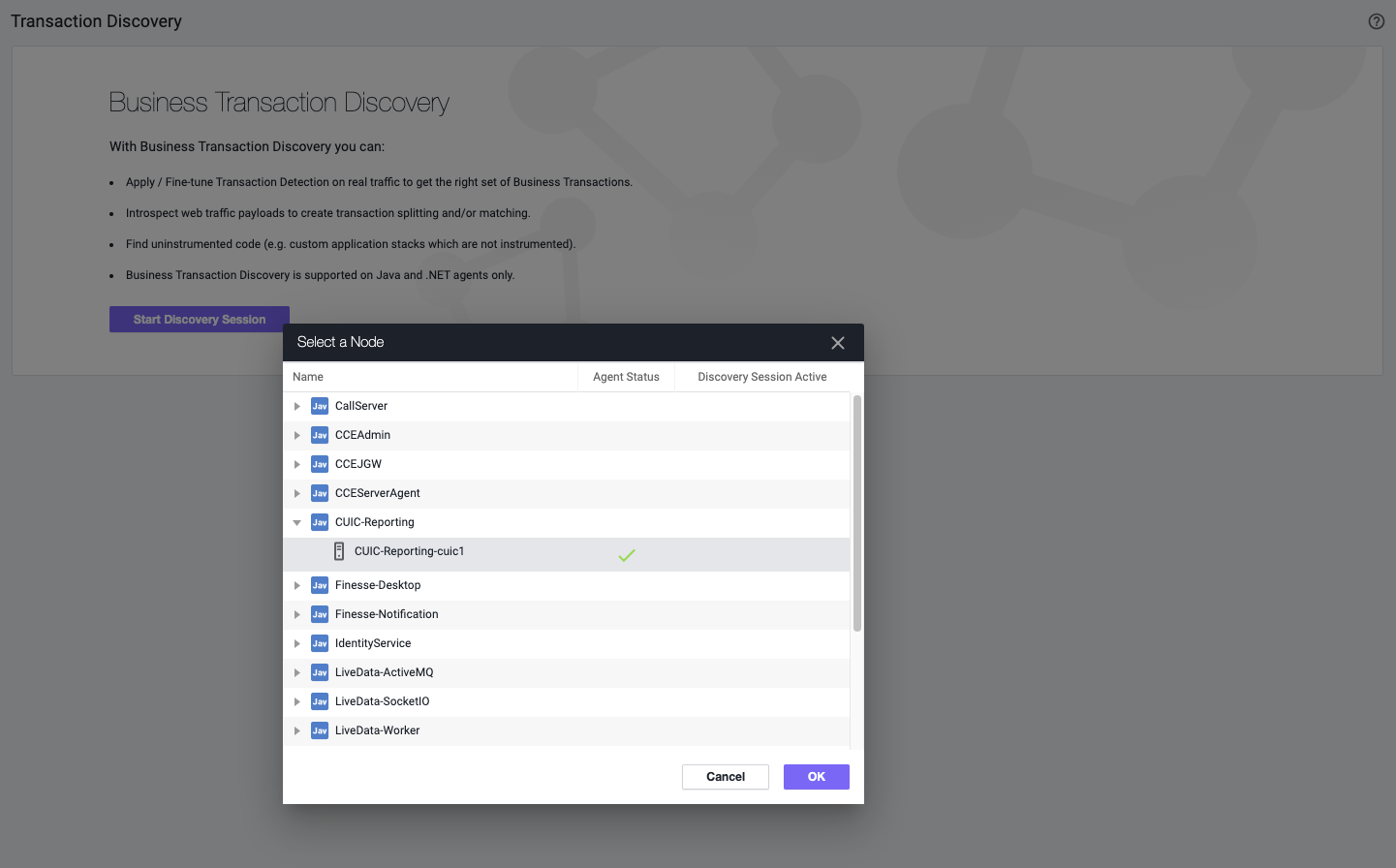
Once we select a node from “CUIC-Reporting”, we’ll hit ok to continue.
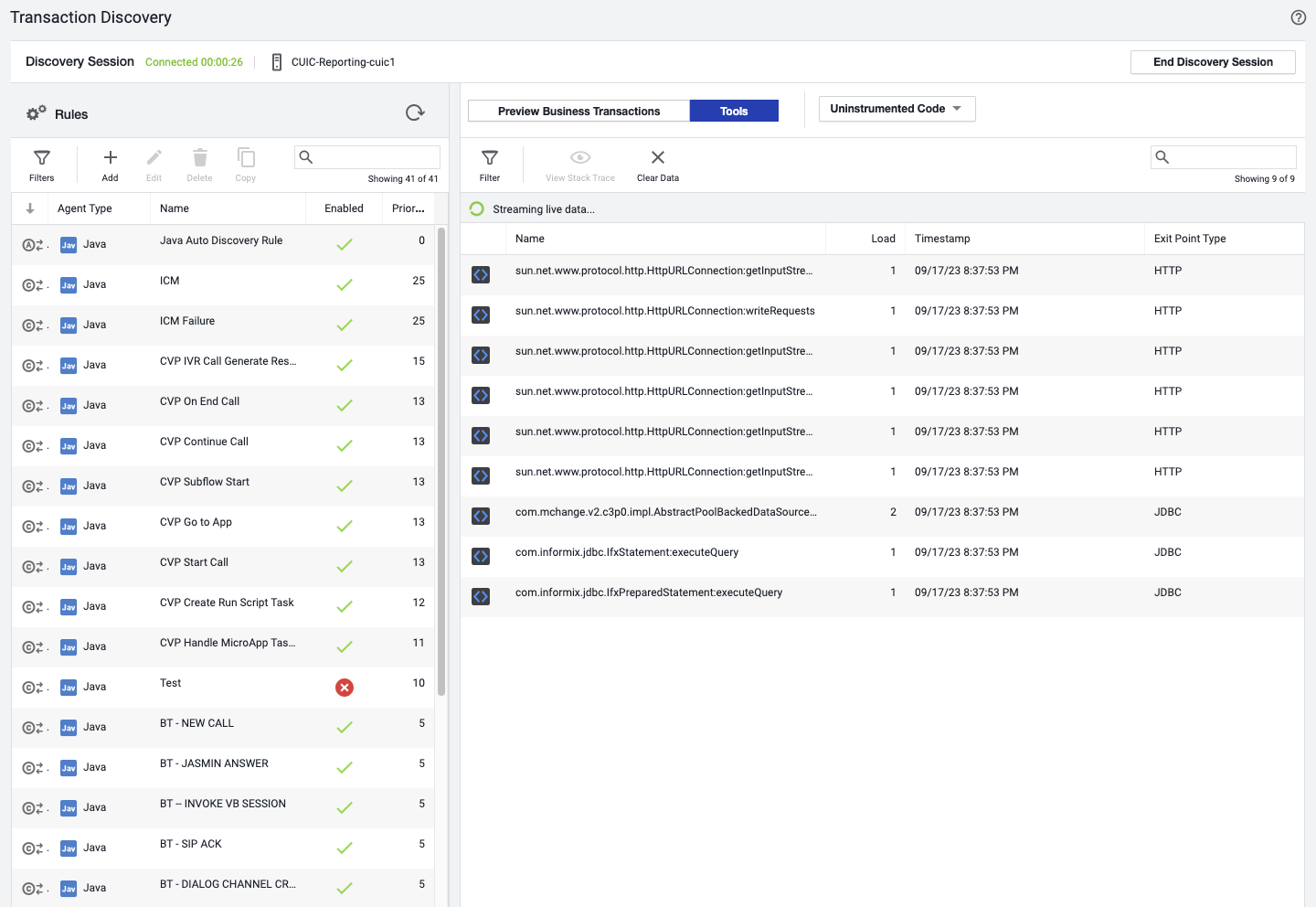
Once you get to page, you can have the option to view Uninstrumented Code, or viewing all the Class, which are being called. Please read the section you are interested in.
Continue Reading below for using Uninstrumented Code
In this page, Live Discovery will start discovering any transactions that are coming in, which are currently uninstrumented. It may take a few seconds before the data come in. If there’s no data, that’s fine. It could mean that there are no uninstrumented code and everything is already being monitored. Please validate by asking for load through the specific component. You will see the Name of the Class and Method, along with how many time the Class and Method is being called. You can view more details on the Class and Method by double clicking on that specific entry.
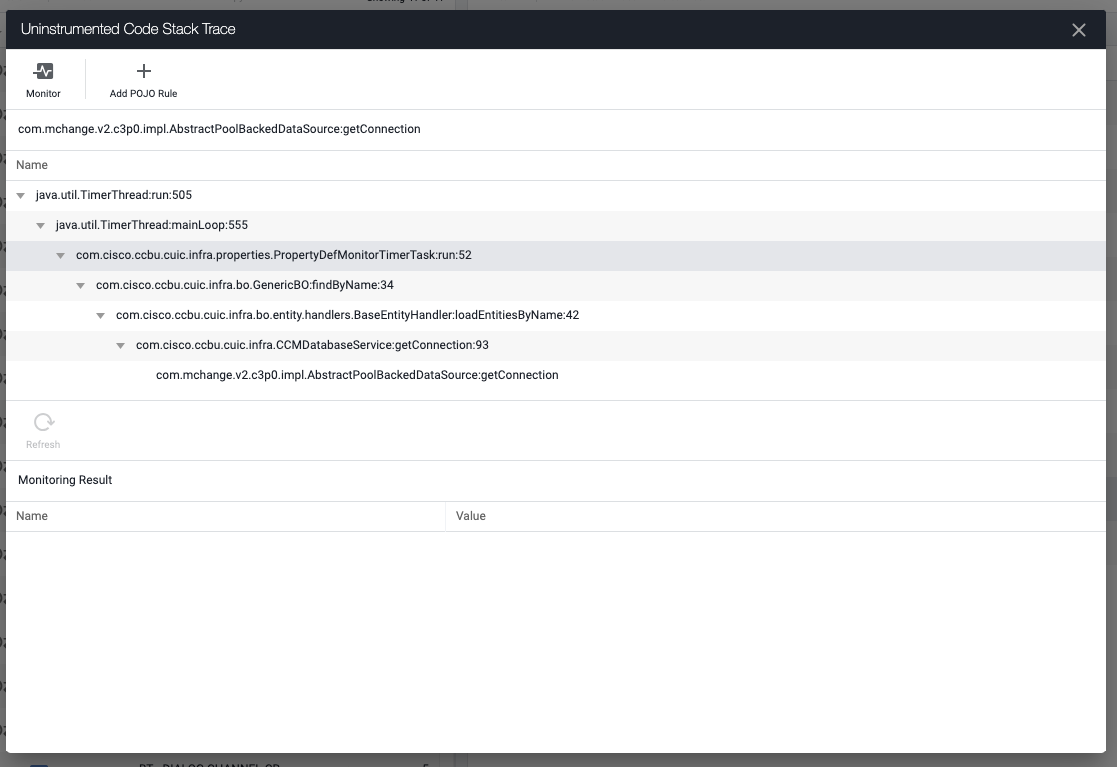
Once you view more details on the specific Class/Method entry, you will see a Stack Trace which is seen by the Agent. If you want to monitor the Class/Method from the stack, feel free to select the specific Class/Method from the stack and select “Add POJO Rule”. In this case, I want the Class/Method up the stack, which eventually calls the targeted Class/Method.
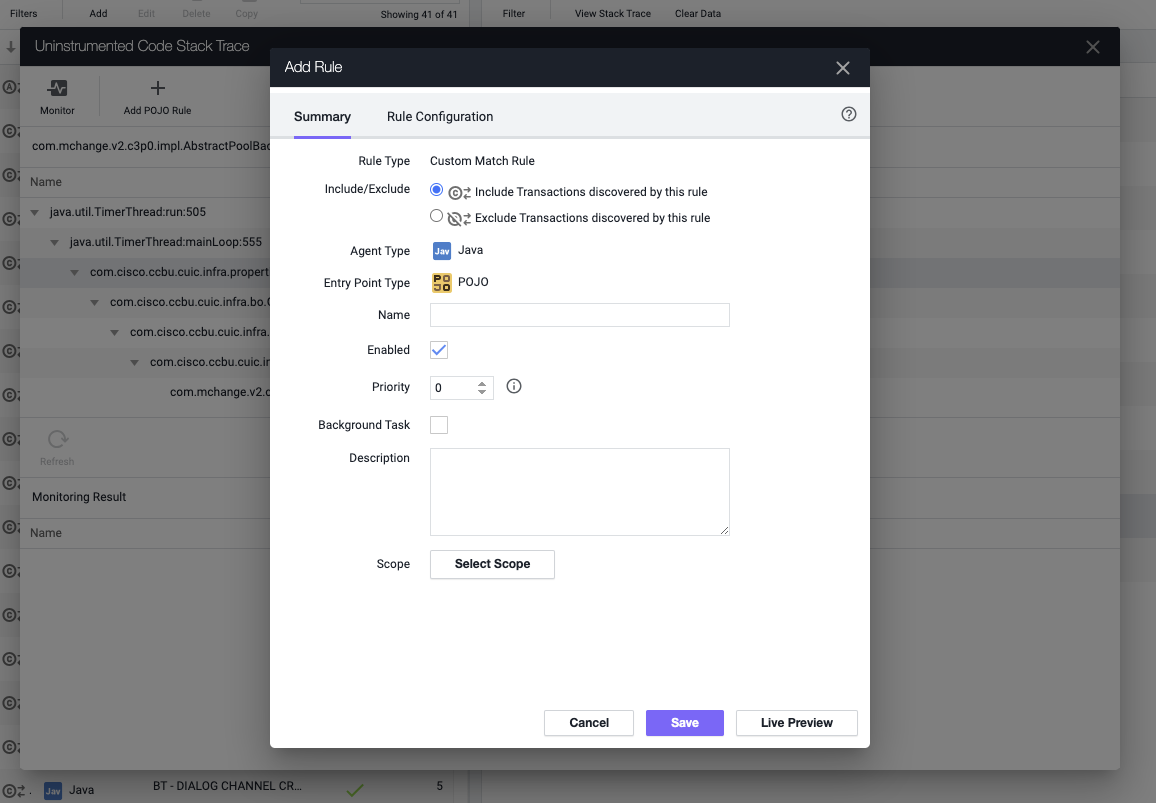
Make the transaction like normal, by providing a transaction name, priority and selecting a scope for this. As for Priority, I would provide a number atleast 5 or higher. As for Scope, I’ll just select the Default Scope, so it can apply to all Tiers, but if you want to be specific, you can create a Scope and target the rule to the Tier you are currently working on.
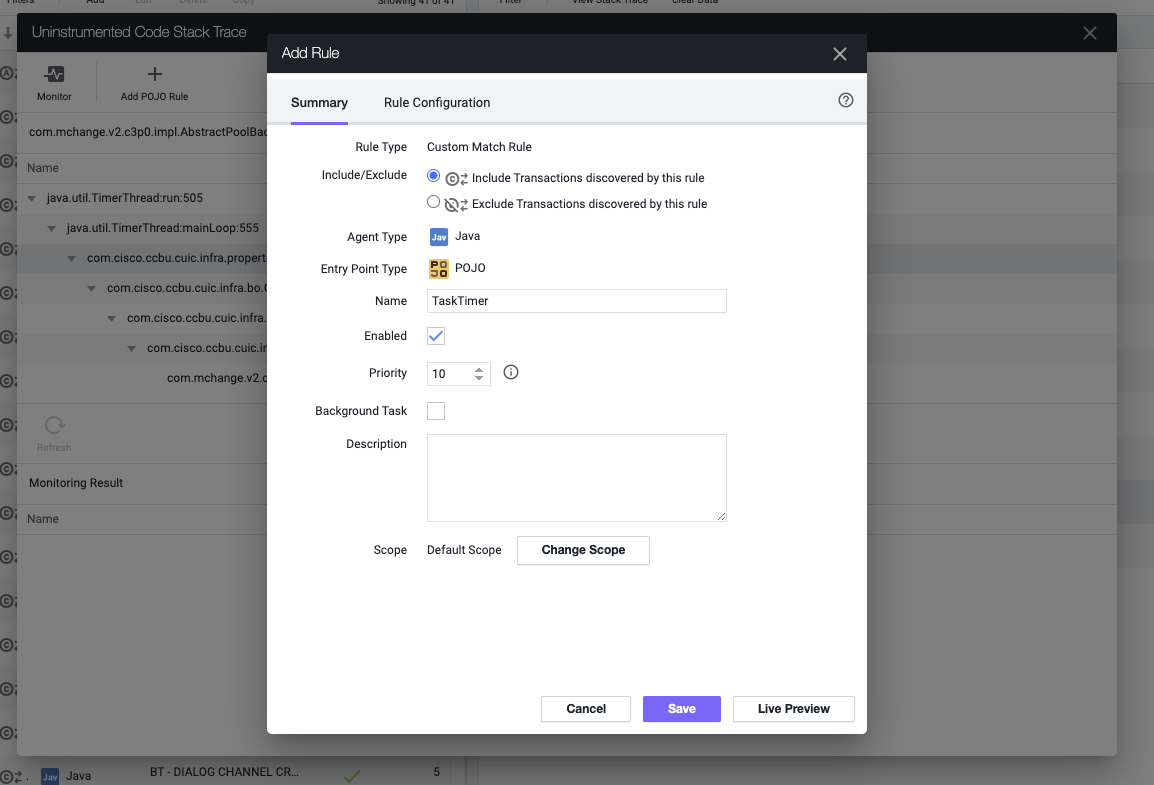
Once you hit save, you can close out all the windows and Preview the Business Transactions to make sure that it’s being detected.
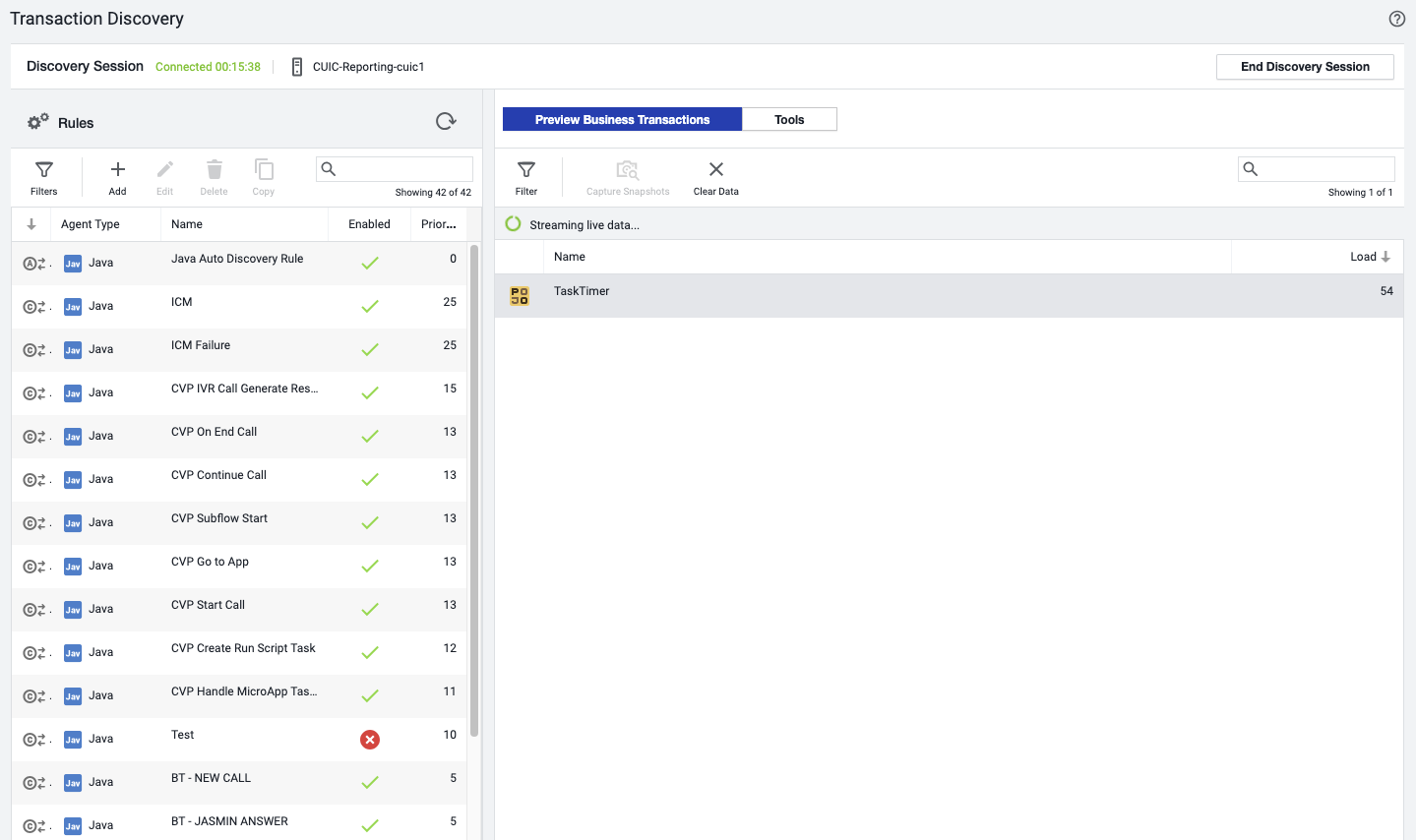
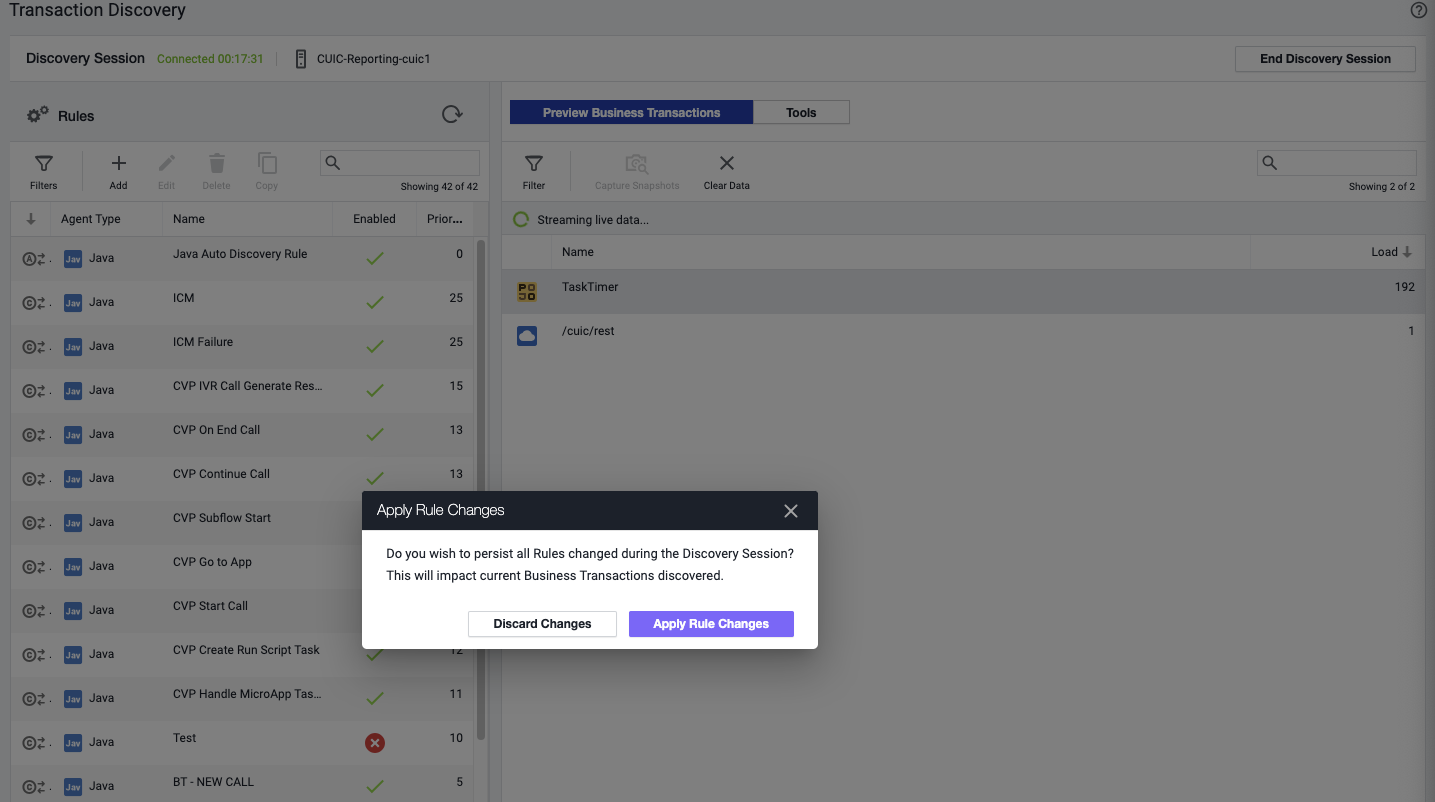
Once you are happy with the defined transaction, End the Discovery Session and when prompt, apply the Rule Change to save the changes. If you hit Discard Changes, the transaction rule that you have created won’t be saved.
Now when you go back to your list of Business Transaction, give it a few minutes, so it can start the instrumentation, but eventually you will see the transaction you have created using Live Discovery.

Continue Reading below for viewing all the Classes
In this page, Live Discovery will start discovering any transactions that are coming in, which are currently uninstrumented. However, we can also view all the Classes. On the top change “Uninstrumented Code” to Classes/Methods.
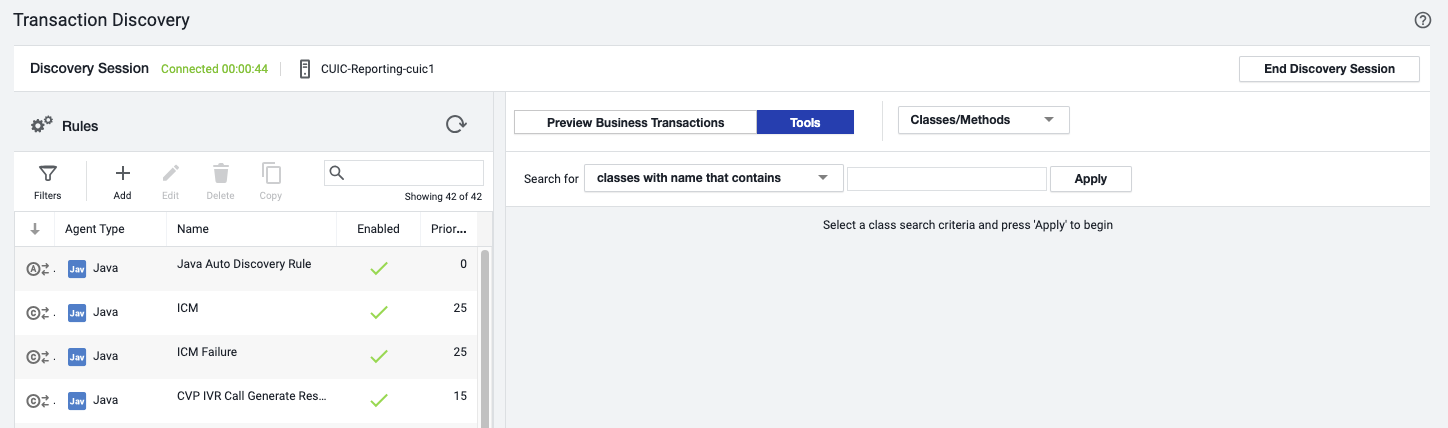
In this page, you will have the option to search for a specific class, or view all classes. For this example, we’ll select “All Classes”, then hit apply.
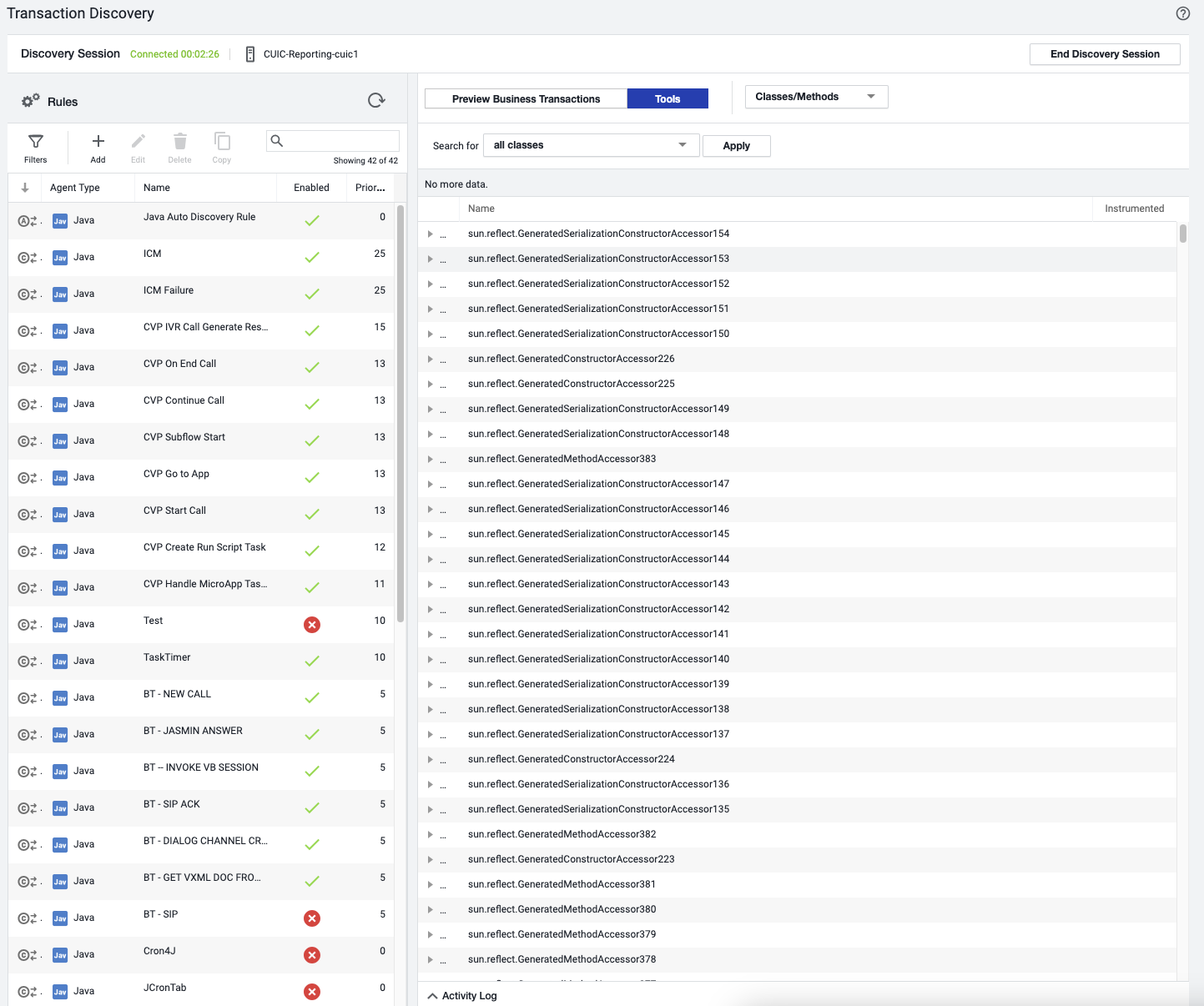
Give it a few seconds and it will populate all of the classes the Agent is seeing. This can be good to identify any specific Classes and the available Methods for the Class, but in most cases it might be an overload of data. What I would recommend is to search for classes with the name that contains cisco. This will provide a list of more relevant classes to instrument.
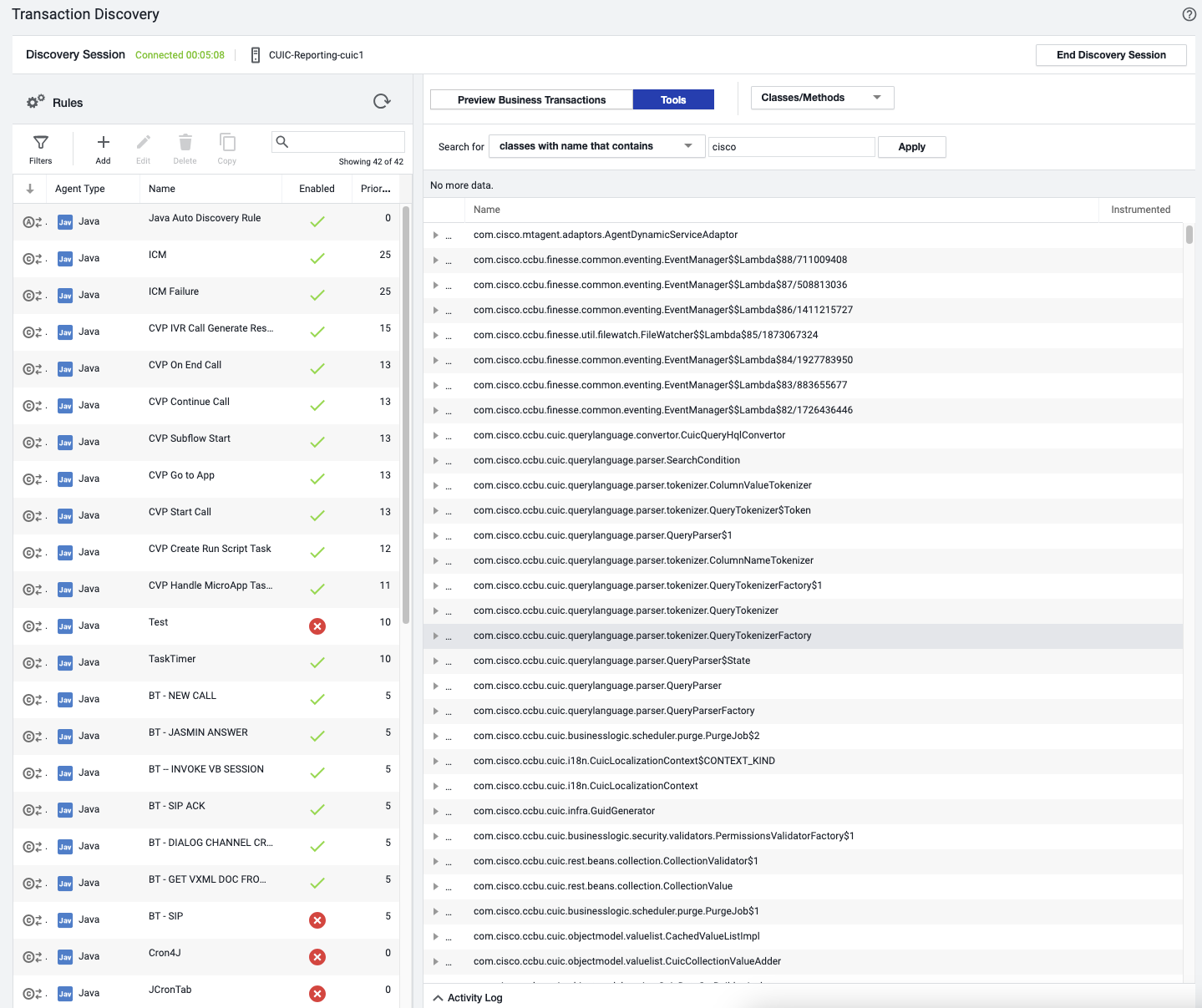
The list should update accordingly. If you are interested in a class, feel free to expand it to see all the available methods for that class.
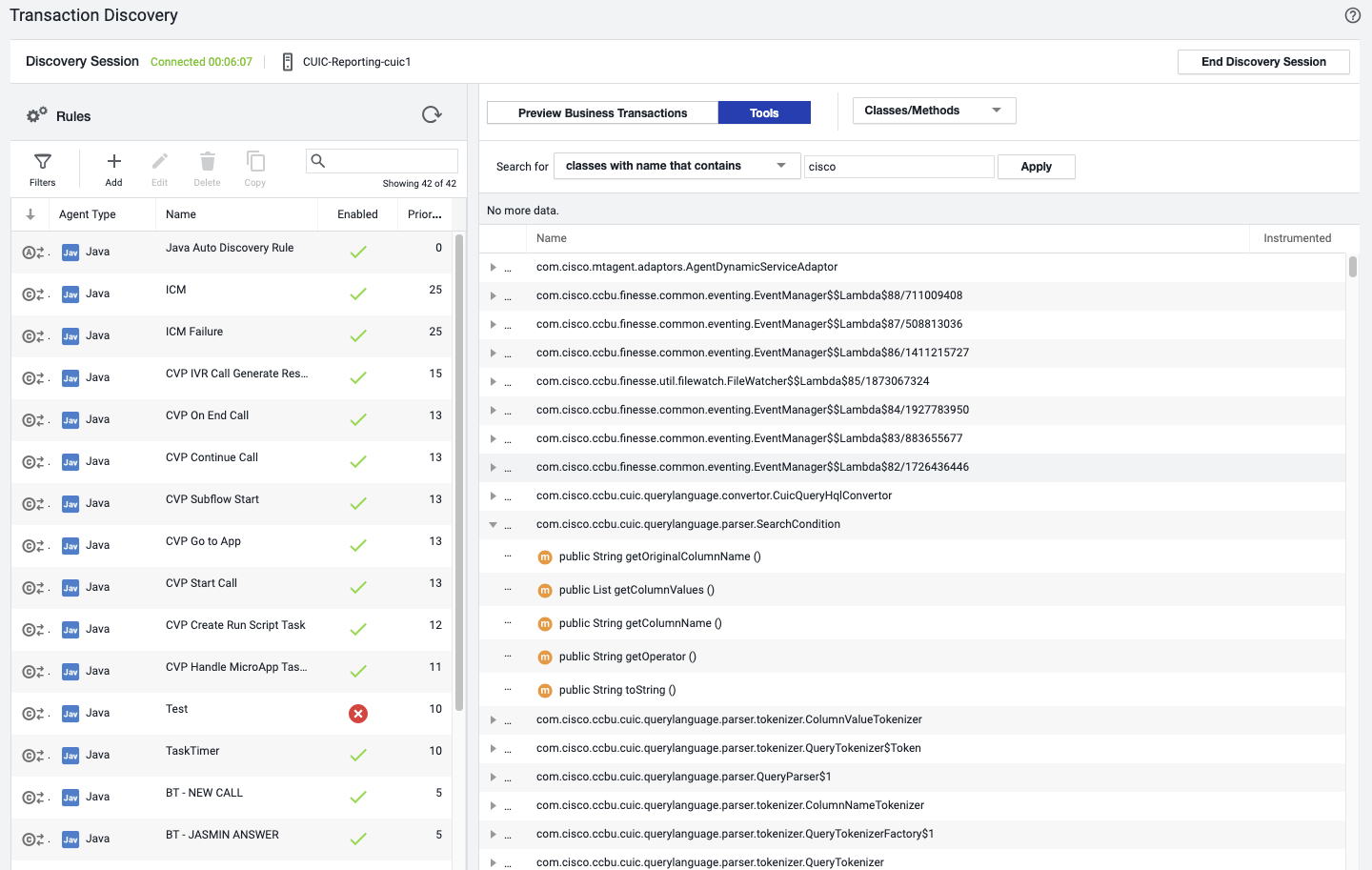
If you want to create a POJO on it, feel free to do so by right clicking on the method and selecting Add POJO Rule.
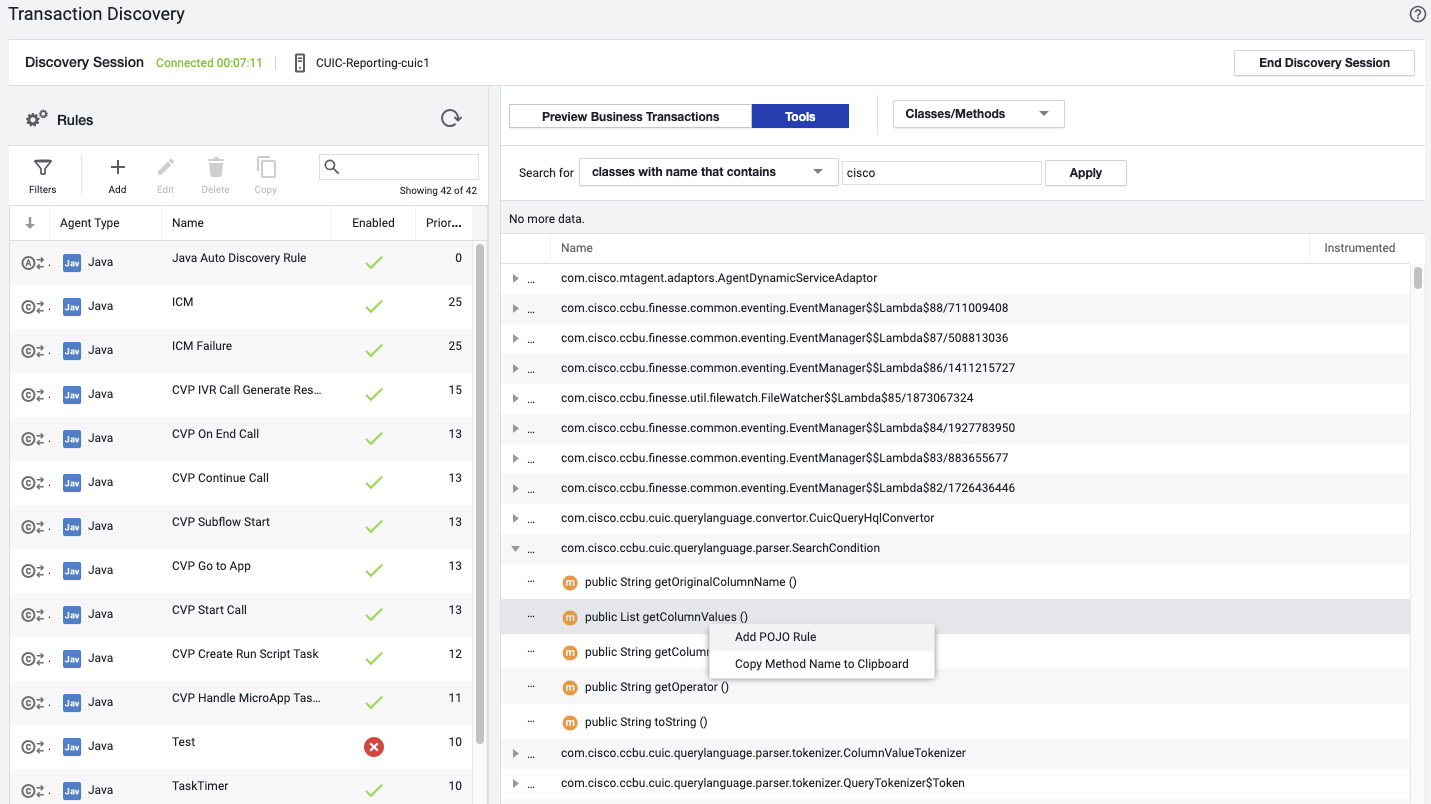
Once you create the POJO, Preview the Business Transaction and see if it ever shows up. Remember to have load in the system. If it doesn’t show up, then chances are that the specified Class/Method isn’t that relevant. I would use this to identify any Class/Method that can help us extract data for Data Collectors. We will be discussing that in the next section.